

Choosing a Laptop for Video Editing on a Budget: The 2026 Reality Check
You have about a thousand dollars, maybe less. You want to cut 4K footage, color grade it in DaVinci Resolve, and you are tired of reading spec sheets that all look identical. The problem is that every article you find lists the same five laptops and tells you the same three things: get lots of RAM, a fast processor, and a dedicated GPU. That is all true. It is also incomplete.
I have been editing on budget machines for years, and I have made expensive mistakes by focusing on the wrong specs. The real differences between a machine that works and one that makes you want to throw it out the window are not the headline numbers. They are the thermal design, the storage speed, and the connectivity. Let me show you what actually matters.
Key Takeaways
- A dedicated GPU matters more than a top-tier CPU for most modern NLEs, but only if it has enough VRAM for your timeline resolution.
- SSD speed is not a luxury; it is the difference between scrubbing 4K footage and waiting for frames to load.
- Thermals are the hidden killer. A laptop that throttles under load performs worse than a "weaker" machine that stays cool.
- Upgradeability saves money in the long run. A laptop with socketed RAM or an extra M.2 slot is a better investment.
- Ports are not an afterthought. You need USB-C with DisplayPort, a full-size SD slot, and HDMI out for a real editing workflow.
- Software optimization matters. DaVinci Resolve on a budget build requires different specs than Premiere Pro. Know your tool first.
The Real Bottleneck: It Is Not the CPU
Everyone talks about processors. The marketing department at Intel and AMD makes sure of that. But here is the thing I learned after editing a 25-minute short film on a machine with a six-core processor that everyone said was "entry-level": it was fine. The processor was never the issue. The playback stutter, the five-minute export times, the application crashes—all of those came from elsewhere.
Video editing is a pipeline. Your footage goes from storage to the CPU, gets decoded, passes through the GPU for effects and color, and then gets encoded back to storage. The weakest link in that chain determines your experience. And on budget laptops, the weakest link is almost never the CPU.
Storage is the first culprit. A mechanical hard drive or a slow SATA SSD will choke on 4K footage. I am talking about read speeds under 500 MB/s. Your timeline will stutter because the computer simply cannot feed the decoder fast enough. The fix is a PCIe NVMe SSD. Look for sequential read speeds of at least 3,500 MB/s. That one upgrade, even on an older laptop, transforms the editing experience.
The difference is dramatic. I once edited the same project on two machines: one with an NVMe drive and one with a SATA SSD. The NVMe machine scrubbed through the timeline like it was nothing. The SATA machine lagged every time I hit play. Same CPU, same GPU, same footage.GPU VRAM: The Spec No One Tells You About
The second bottleneck is GPU memory. Everyone tells you to get a "dedicated graphics card," but they rarely explain why or what capacity you actually need. Here is the practical truth: the amount of VRAM determines how much of your timeline the GPU can hold for real-time playback and effects processing.
For 1080p editing, 4 GB of VRAM is workable. For 4K, you want at least 6 GB, and 8 GB is much more comfortable. A laptop with an RTX 4050 (6 GB) will handle 4K timelines in Premiere Pro reasonably well, especially with the "Mercury Playback Engine" set to GPU acceleration. The same laptop with just 4 GB will drop frames and force you to render previews constantly.
NVIDIA also has a software advantage: CUDA acceleration. Both Premiere Pro and DaVinci Resolve are heavily optimized for NVIDIA GPUs. AMD cards work, but I have seen more driver quirks in editing apps over the years. It is anecdotal, but it is consistent. Unless you have a specific reason to go AMD, pick an NVIDIA GPU for a budget editing laptop.
RAM: 16 GB Is the Minimum, 32 GB Is the Target
RAM is the one spec where more money almost always translates to a better experience. Editing software is hungry. A 4K timeline with color nodes in DaVinci Resolve can eat 12 GB instantly. Throw in a browser with your reference material, a messaging app, and your music player, and you are at the edge of 16 GB.
16 GB is the absolute floor for 2026. It will work, but you will close applications when you edit. If you can stretch to 32 GB, you will not think about RAM again for years. And here is the trick: buy a laptop with a socketed SO-DIMM slot so you can upgrade later. A machine that ships with 8 GB soldered and one free slot is more future-proof than one with 16 GB soldered and no upgrade path.I made this mistake in 2021 with a sleek ultrabook. It had 16 GB of soldered RAM and a beautiful screen. Two years later, when I started working with 4K color grade, that laptop became a paperweight. I could not upgrade it. When I bought my next machine, the non-negotiable was a free RAM slot.
Thermal Design and Throttling: The Spec That Breaks Budget Dreams
Here is the third bottleneck, and it is the one that frustrates people the most. A laptop can have the best specs on paper, but if it cannot dissipate heat, it will slow itself down to survive. This is called thermal throttling, and it is the reason two laptops with the same processor perform completely differently.

I bought a thin and light laptop with an Intel Core i7 and an RTX 3050 once. It looked perfect. The first time I exported a 10-minute 1080p video, the fans sounded like a jet engine, and the laptop slowed to a crawl by minute three. The chassis was too thin. There was no room for heat pipes or airflow. Total waste of money for my workflow.
The budget-friendly alternative is a thicker, heavier machine. Gaming laptops are often the best value for editors because they have aggressive cooling. A 15-inch gaming laptop from ASUS or Lenovo with last year's CPU is frequently cheaper and cooler than a slim "creator" laptop with the same chip. It is heavier and the battery life is worse, but you are not buying this for portability. You are buying it to edit.
How do you spot a well-cooled budget laptop? Look at the reviews that show sustained performance, not just burst benchmarks. A laptop that maintains 80% of its peak performance over a 20-minute stress test is better than one that hits 100% for two minutes and then drops to 60%. I have seen tests where budget gaming laptops maintain their clock speeds far better than premium ultrabooks. Trust the sustained numbers.Storage: NVMe Is Non-Negotiable for 4K
The difference between a laptop with an NVMe SSD and one with a SATA SSD or, god forbid, a hard drive, is like the difference between editing and waiting. For 4K footage, you need sustained read speeds. NVMe drives also have much better random I/O, which matters when your editing software is accessing hundreds of small cache files.
I recommend a minimum of a 512 GB NVMe drive for your system and software, and ideally a slot for a second NVMe drive for your footage. Video files are enormous. A single 4K project can easily eat 200 GB of raw footage. Editing from an external HDD is possible but miserable. Editing from an external SSD over USB 3.2 or Thunderbolt is acceptable, but an internal drive is still faster and more reliable.
One practical note: if you can, buy a laptop with two M.2 slots. You can put your OS and applications on one drive and your active projects on another. This separates the workloads and avoids I/O contention. It also makes future storage upgrades a five-minute job instead of a data migration nightmare.Connectivity: Ports Are Your Editing Lifeblood
You will plug things in. An external monitor for color grading, an SD card reader for camera footage, a USB drive to hand off files to a client. The ports on your laptop determine how painful this is.
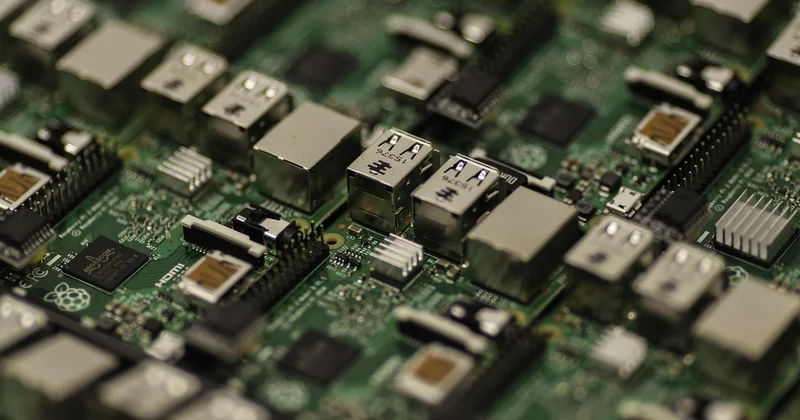
The minimum you need in 2026:
- USB-C with DisplayPort Alt Mode (or Thunderbolt if you can afford it) for a high-refresh external monitor.
- HDMI 2.0 or better for client presentations on a TV or projector.
- A full-size SD card slot—not microSD, not the reader dongle you will lose.
- At least USB-A port for older peripherals and backup drives.
I ignore this advice when I buy a laptop because I want something thin. I always regret it. The dongle life is a constant series of lost cables, dead batteries on adapters, and the inability to just plug something in when a client is waiting.
Software Optimization: Know Your Editing App First
This is the most underrated part of the decision. Different editing programs have different hardware demands. If you pick your software first, you can pick a laptop that is perfectly tuned for it.
For DaVinci Resolve, the GPU is everything. The color engine runs on the GPU, and the noise reduction and temporal effects are GPU-accelerated. A laptop with a strong GPU and a weaker CPU is a solid choice. You also want NVIDIA here, since Resolve has excellent CUDA support.
For Premiere Pro, the balance is more even. It uses the GPU for effects and scaling, but the CPU still matters for decoding and encoding. A laptop with a mid-range CPU and a 6 GB GPU is a sweet spot for budget buyers.
For Final Cut Pro, you are on a Mac, and the rules are different. Apple's M-series chips handle video editing spectacularly. A refurbished MacBook Air with an M1 chip and 16 GB of RAM is genuinely excellent for 4K editing, and often cheaper than a Windows laptop with equivalent specs. The trade-off is the storage upgrade costs, which are absurd. You will live on external SSDs.
What About 4K Specifically?
Editing 4K on a budget laptop is possible, but you need to be smart. The laptop does not need to handle the native 4K files for playback. You should be using proxy workflows or optimized media. Every serious editor does this. You transcode your 4K footage to a lighter codec for editing, and then you switch back to the original files for final render.
This means your laptop specs matter less for the "editing" part and more for the "rendering" part. Your export times are determined by your CPU and GPU. A budget laptop will render a 4K project in 10 minutes instead of 3. That is the price you pay. But the editing experience itself can be perfectly smooth with proxies.
Budget Breakdown: Where the Money Goes
Here is a rough allocation for a $1,000 budget in 2026:

| Component | Priority | What to Look For |
|---|---|---|
| GPU | Highest | NVIDIA RTX 4050 or better, 6 GB+ VRAM |
| Storage | High | NVMe SSD, 1 TB total capacity or 512 GB + extra M.2 slot |
| RAM | High | 16 GB minimum, 32 GB target, one socketed slot if possible |
| CPU | Medium | Last-gen i5 or Ryzen 5 is fine; do not pay a premium for the latest chip |
| Display | Medium | IPS panel, 100% sRGB, 1080p minimum; 1440p is nice but not essential |
| Build/Ports | Medium | Good cooling, full-size SD slot, USB-C with DisplayPort |
The pattern is clear: spend on the GPU and storage, save on the CPU. A laptop with an i5-13420H and an RTX 4050 will edit video better than one with an i7-13700H and integrated graphics. The GPU does the heavy lifting in modern NLEs.
The Smartest Budget Move: Buy Refurbished or Last-Gen
The most effective way to stretch a budget is to ignore the current model year. A top-tier laptop from two years ago will usually outperform a brand-new entry-level model at the same price. I bought a refurbished workstation-class laptop with a RTX 3080 for the same price as a new laptop with an RTX 4050. The 3080 had more VRAM and faster raw compute. It ran circles around the newer machine in rendering.
The trade-offs are battery life and weight. But for a video editing laptop, those barely matter. You are plugged in, on a desk, with fans spinning. Perfect for this use case.
One more thing: the term "gaming laptop" is your friend. They have the cooling, the GPU, and the ports. They are not beautiful, but they are effective. I have lost count of my colleagues who bought a sleek machine and then had to buy a dock, an external SSD, and a monitor to make it usable in an editing context. Buy the gaming laptop, skip the accessories.
The Last Word on Budget Editing Laptops
The best budget laptop for video editing is not the one with the most impressive spec sheet or the prettiest design. It is the one that stays cool under load, feeds 4K footage without stuttering, and has the ports you actually need. The GPU and NVMe storage deserve your money; the latest CPU and the ultra-thin chassis do not.
And honestly? The machine is only half the battle. Workflows, proxy media, and knowing your software's quirks will do more for your editing speed than a processor that is 15% faster. I have seen editors produce professional work on machines that spec-sheet warriors would mock. I have also seen people buy the most expensive laptop in the store and never learn how to use it properly.
Buy the laptop that fits your actual workflow. Your timeline will thank you.


