

Setting up a home network for remote work security: the part most people get wrong
You've probably already changed your router's admin password. Good. That's the step every checklist gives you, and it's the step almost everyone stops at. But here's what nobody tells you: your work laptop and your kid's tablet and that cheap smart plug in the kitchen are all sitting on the same network, talking to each other, trusting each other. Your employer's IT team has no idea that device exists. Neither do you, half the time.
That's the real problem with home network security for remote work. It's not the password on the router. It's the fact that you're running a small office out of a network designed for streaming Netflix.
I've set up networks for three different apartments over the years, and I made the same mistake twice: I secured the perimeter, then let everything inside the perimeter talk freely. The fix isn't expensive. It's just not obvious, and most guides skip it entirely.
Key Takeaways
- Changing your router password is step one of about six — it's necessary but nowhere near sufficient.
- Segmentation (separating your work devices from personal and IoT devices) matters more than any single firewall setting.
- WPA3 is the current encryption standard; if your router is older than a few years, it may not support it.
- Your employer's VPN protects data in transit, not your home network itself — those are two different jobs.
- A guest network is a free segmentation tool most people never activate.
- Most router compromises aren't sophisticated hacks — they're default credentials and unpatched firmware.
Why your router is the actual front door — and why "strong password" isn't enough
Think about what your router does. Every packet from your work laptop, your phone, your thermostat passes through it. It's the one device that sees everything and is trusted by everything. Which is exactly why it's the target.

The uncomfortable truth is that most home router compromises don't involve anyone "hacking" in the Hollywood sense. They involve a device still running default admin credentials or firmware that hasn't been updated since you bought it. I once found a router in a rental apartment still using the factory login printed on the sticker underneath it. The landlord had never touched it. That router had been online, exposed, for years.
What actually needs to change on the router
Here's the sequence that matters, in order:
- Admin password — change it from the default. Make it long. This is separate from your Wi-Fi password, and people confuse the two constantly.
- Wi-Fi encryption — set it to WPA3 if your router supports it, WPA2-AES if it doesn't. Never WEP, never "open."
- Disable WPS — that push-button pairing feature is convenient and also a known weak point. Turn it off.
- Disable remote administration — unless you have a specific reason to manage your router from outside your home, and you probably don't.
- Firmware updates — enable auto-update if available, or check manually every few months. This is the step people forget for years.
- Rename the network so it doesn't broadcast your router model or your name.
None of this is hard. It's about twenty minutes of clicking through a web interface you've probably never opened. Log into your router by typing its IP address (usually something like 192.168.0.1 or 192.168.1.1) into a browser. That's where all these settings live.
The step everyone skips: network segmentation
Here's where I'll plant a flag. In my opinion, segmentation is the single most important thing you can do for a home office network, and it's the thing almost no guide tells you to do. I'll die on this hill.
The idea is simple: your work laptop should not be able to talk to your smart TV, and your smart TV should not be able to talk to your work laptop. They don't need to. They never did. But by default, everything on your home Wi-Fi is on one flat network where any device can see any other.
Why does that matter for remote work? Because IoT devices are notoriously poorly secured. That $25 video doorbell or smart bulb is often running old software with no update path, and once it's compromised, it's sitting right next to the device holding your company's files.
Three ways to segment, from easiest to most thorough
| Method | Difficulty | What it protects | Best for |
|---|---|---|---|
| Guest network | Low — built into most routers | Isolates guest and IoT devices from your main network | Anyone who wants a quick win |
| Separate SSIDs | Medium | Dedicated network names for work, personal, and smart devices | Households with many devices |
| VLANs | High — needs compatible hardware | True isolation at the network level, with firewall rules | People comfortable with router config |
The guest network route is the one I recommend to almost everyone. It's usually a checkbox away in your router settings, it costs nothing, and it gives you real separation. Put every smart device and every visitor's phone on the guest network. Keep your work laptop on the main one. That alone closes the gap most people never even notice.
VLANs are better, but I'll be honest — I spent a weekend setting them up on my own network and broke my connection twice before I got it right. If you enjoy that kind of thing, go for it. If you don't, the guest network gets you 80% of the benefit for 5% of the effort.
How to secure Wi-Fi from hackers without buying a bunch of gadgets
You don't need a rack of equipment. You need the settings above, done properly, plus a couple of habits.
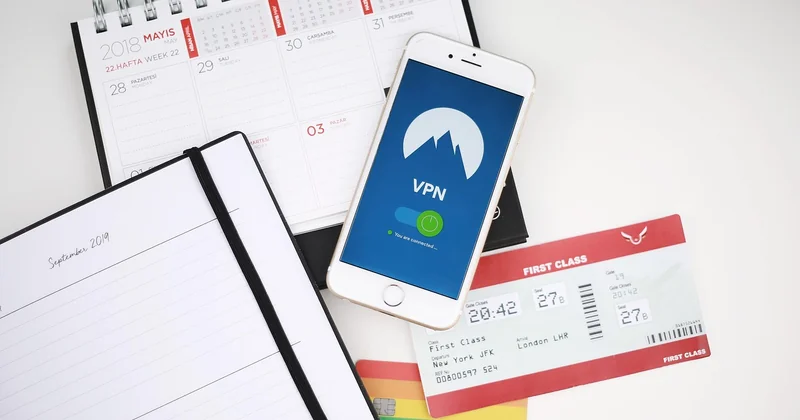
The biggest misconception I run into: people think a VPN protects their home network. It doesn't. Your employer's VPN encrypts the connection between your laptop and the company servers. It does nothing about whether your neighbor can see your router or whether your smart speaker is sitting on the same network as your work files. Those are different problems with different fixes.
What actually stops the common attacks
- WPA3 encryption plus a long, unique Wi-Fi password — this alone defeats the vast majority of casual attempts to get onto your network.
- Disabled WPS — because that button is a shortcut for attackers too.
- Updated firmware — most router exploits target known vulnerabilities that were patched months or years ago.
- Network monitoring, if you want to go further — some routers show you every connected device, which is how you spot the one you don't recognize.
Real talk: attack tools that break WPA3 are rare and not what you should worry about. What should worry you is the router you set up once and forgot, still running the firmware it shipped with, with a password you came up with in thirty seconds.
Do home network security devices actually help?
Sometimes yes, often no, and the marketing makes it hard to tell. Let me separate the wheat.
A hardware firewall or a mesh router with built-in security features can genuinely help, especially if it handles firmware updates automatically and gives you clear visibility into what's connected. That's real value. What I'm skeptical of is the subscription-based "security" add-ons that mostly tell you what your router already told you, wrapped in an app.
The one category I do think earns its place: a router that supports automatic security updates and clear device management. If your current router is more than five or six years old, replacing it may be the single highest-value move you make, because old hardware often can't run WPA3 or receive patches anymore.
I replaced a router I'd had for six years and the difference in what I could configure was night and day. Not because the new one was fancy — because the old one was simply out of support.
How to secure my Wi-Fi router at home — the free checklist
Everything in this article is free unless you choose to buy new hardware. Your existing router almost certainly has every setting you need.
Run through this once, today:
- Log into your router's admin panel.
- Change the admin password and the Wi-Fi password.
- Set encryption to WPA3, or WPA2-AES if WPA3 isn't available.
- Turn off WPS and remote administration.
- Enable auto-updates, or note when you last checked manually.
- Activate the guest network and move all smart devices and visitor phones onto it.
- Walk through the connected-devices list and confirm you recognize every single one.
That last step is the one that catches things. A device you don't recognize on your network is worth investigating immediately — it might be a forgotten gadget, or it might be something you didn't invite.
What this setup does not solve
I want to be honest about the limits, because too many guides pretend a secure home network makes you untouchable. It doesn't.
If you click a phishing link on your work laptop, your network being segmented won't save you. If your company's servers get breached, your router settings are irrelevant. Network security is one layer, and it's the layer you control — but it's not the only layer, and it doesn't substitute for the basics on the device itself: multi-factor authentication, keeping your work machine updated, and not plugging in random USB drives you find in a parking lot.
What a properly configured home network does is remove the easy paths. It means an attacker can't wander in through a default password or hop from your doorbell to your work files. That's a meaningful reduction in your exposure, and it's achievable in an afternoon.
The part that stays with me: the devices we trust most are the ones we think about least. Your router has been sitting there, quietly, seeing everything, for years. Maybe it's worth twenty minutes of your attention tonight.


